WebApp Documentation
Login
To log in you need your credentials.
If you have questions about your credentials, contact your administrator.
Main Navigation Menu
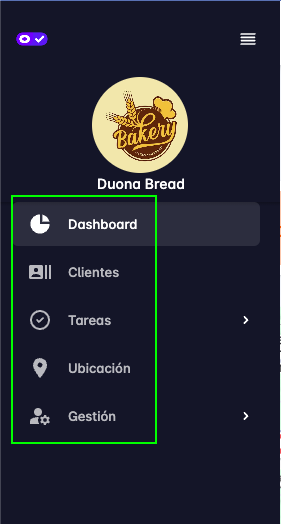
The navigation menu for all available features always appears on the left side.
At the top is the button to keep that navigation bar pinned.
Below that is a space to place your company logo and name.
Contact us and we will help you add your logo.
Then links appear to navigate to the features: Dashboard, Clients, Tasks, Location, Management.
Dashboard
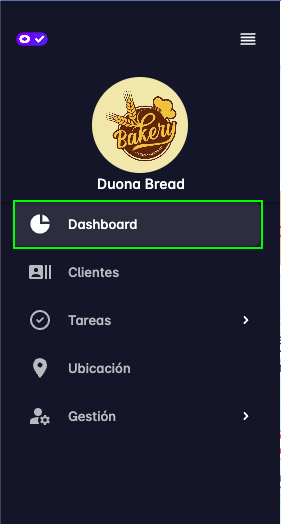
Press Dashboard to view the page that shows a summary of what is happening today.
On that page you will find a summary of completed tasks, visits made, and clients attended.
A map shows the last known location of users, the location of clients, and the location of tasks.
A bar chart shows the number of tasks completed per user and per hour.
A bar chart shows the number of visits made per user and per hour.
A bar chart also shows the number of clients attended per user and per hour.
Clients
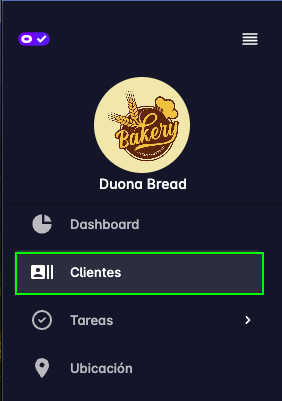
Press Clients to view the clients you have linked.
On that page you will find options to search, create, and edit clients.
For more information see the documentation for Client List, Create Client, Edit Client.
Tasks
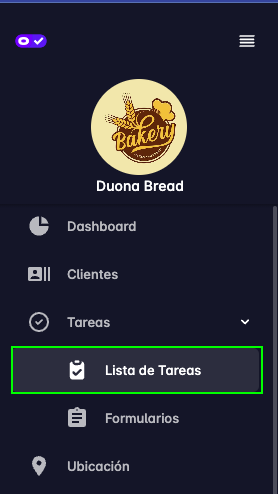
From the main navigation bar press Tasks -> Task List to open the page
where tasks are managed.
On that page you can create tasks, edit tasks, apply filters, and search tasks.
For more information see the documentation for Task List.
For more details on how to create a task see the page Create a Task.
Location
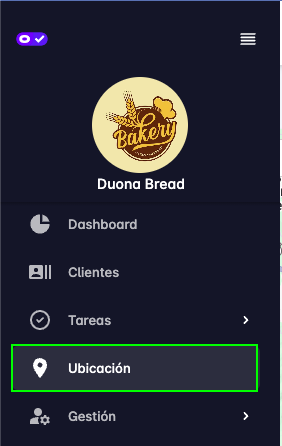
From the main navigation bar press Location to open the page
where everything related to user location is managed.
On that page you can view the location of users, clients, tasks, visits, and geofences.
For more information see the documentation for Location.
Management
From the main navigation bar press Management to open the page
where everything related to application administration is managed.
In that section you can navigate to the list of users, projects, tags, alerts, file uploads, and
workspace configuration.