Delete Task
To delete a task, follow these steps:
- Go to the tasks page.
- Find the task you want to delete.
-
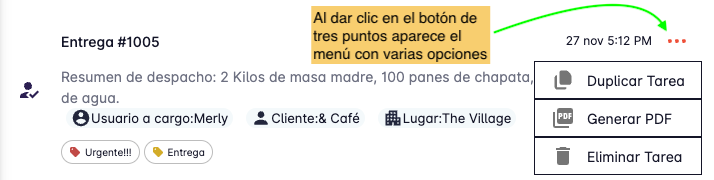
Click the three-dot button on the right side of the task.
-
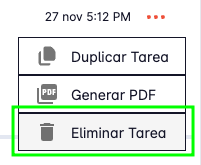
A menu will open with several options — click "Delete".
-
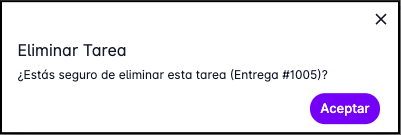
A confirmation message will appear.
-
Click "Delete" to confirm.
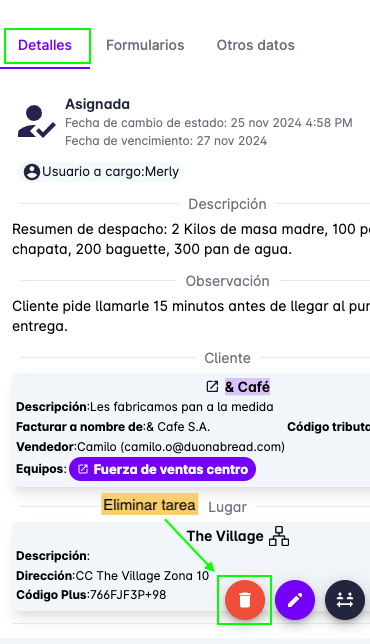
You can also delete a task from the task detail view:
- Open the task detail.
-
At the bottom of the detail panel, click the "Delete" button.
-
A confirmation message will appear.
- Click "Delete" to confirm.
After about 3 minutes, the task will no longer be available in the mobile app of the assigned user.