Duplicate Task
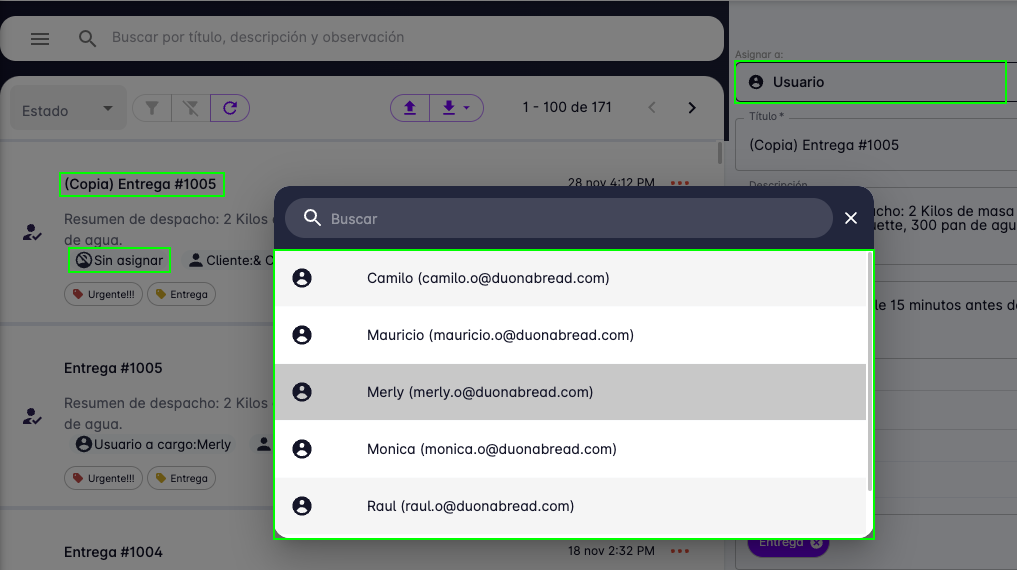
The platform allows you to duplicate a task. This is useful when you need to create a task similar to an existing one. The duplicated task will have the same information as the original, but with a new status and no assigned user. You must have the task creation permission to use this feature.
To duplicate a task, follow these steps:
- Go to the tasks page.
- Find the task you want to duplicate.
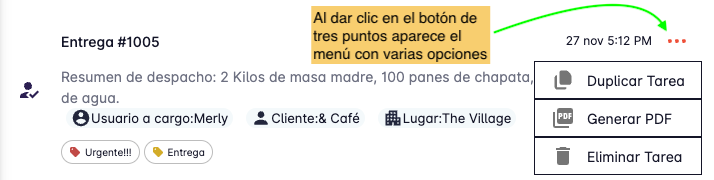
- Click the three-dot button on the right side of the task.
-
A menu will open — click "Duplicate Task".
-
A new task is created immediately with the same information as the original, but with no assigned user.
- The duplicated task will appear in the task list and in the right panel.
You can also duplicate a task from the task detail view:
- Open the task detail.
-
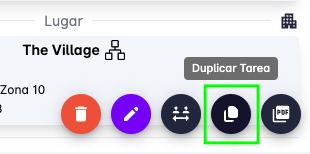
At the bottom of the detail panel, click the "Duplicate Task" button.
-
A new task is created with the same information as the original, but with no assigned user.
- The duplicated task will appear in the task list and in the right panel.
Assign the Duplicated Task to a User
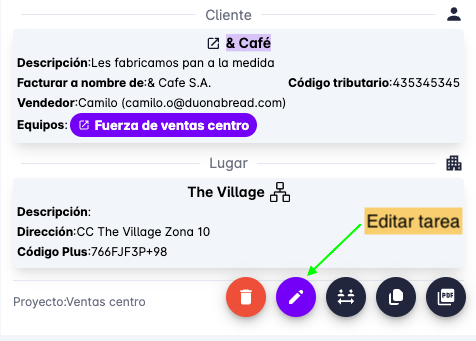
To assign the task to a user, press the edit button and select the desired user from the edit form.