Task List
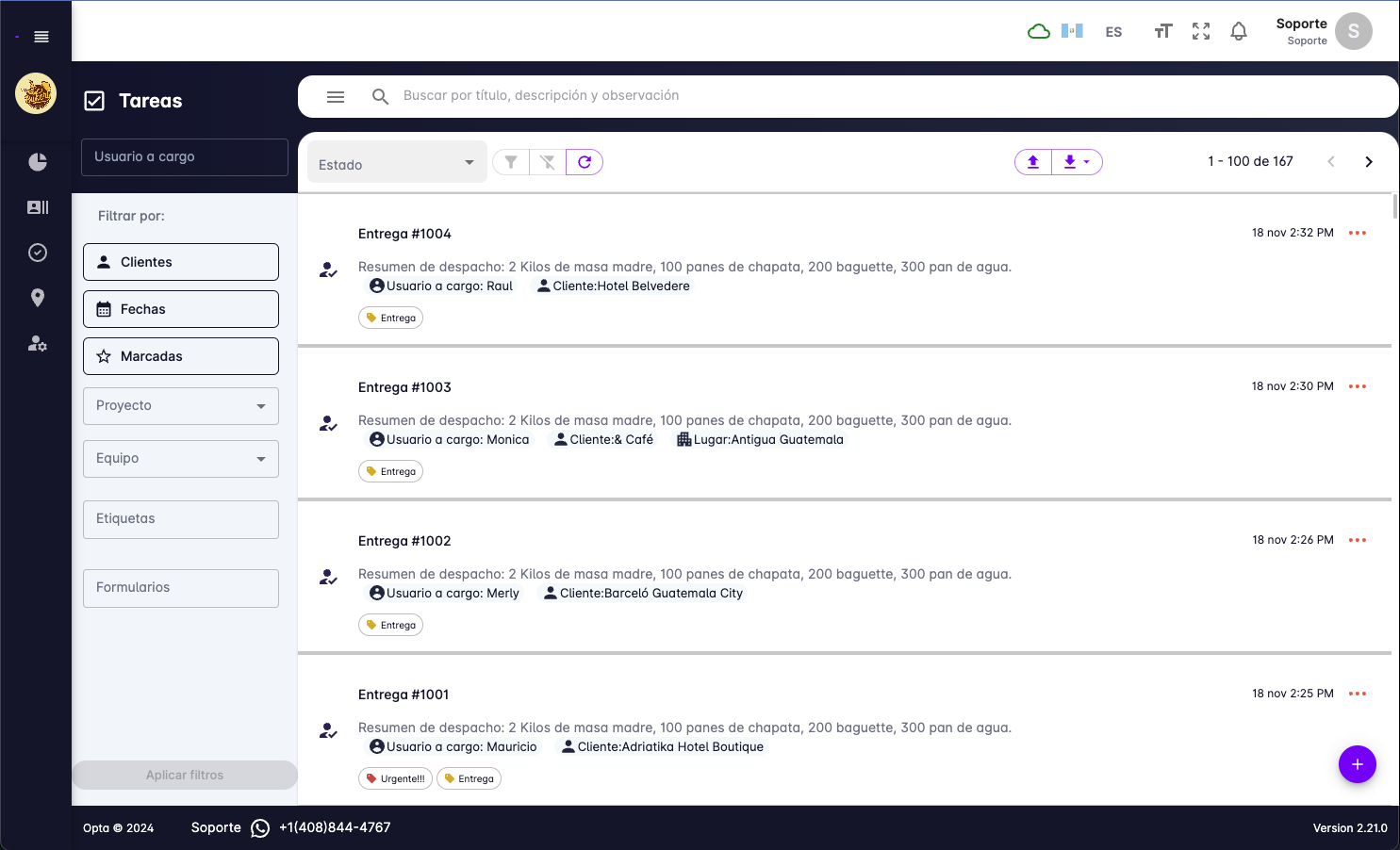
From this page you can manage everything related to your tasks.
- View the details of a specific task.
- Create new tasks.
- Edit existing tasks.
- Bulk upload tasks via CSV file.
- Filter by status, client, dates, teams, form, and more.
- Task search.
- Download Excel and CSV files.
- View the total number of tasks.
Filter Tasks
To filter tasks, use the buttons on the left and center of the screen.
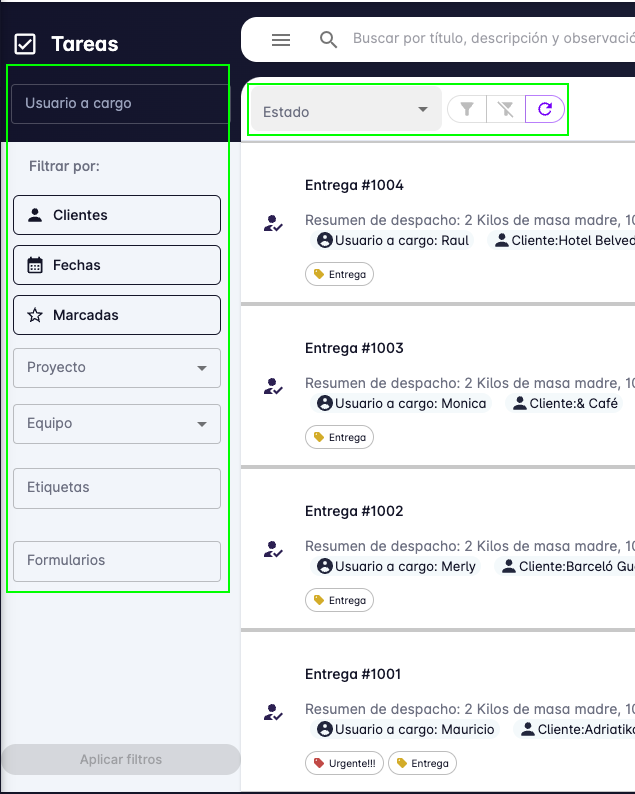
You can filter by user, status, client, dates, flagged, project, teams, form, and tags.
Set the desired filters and then press the "Apply filters" button.
The image below shows several filters selected with the apply button highlighted.
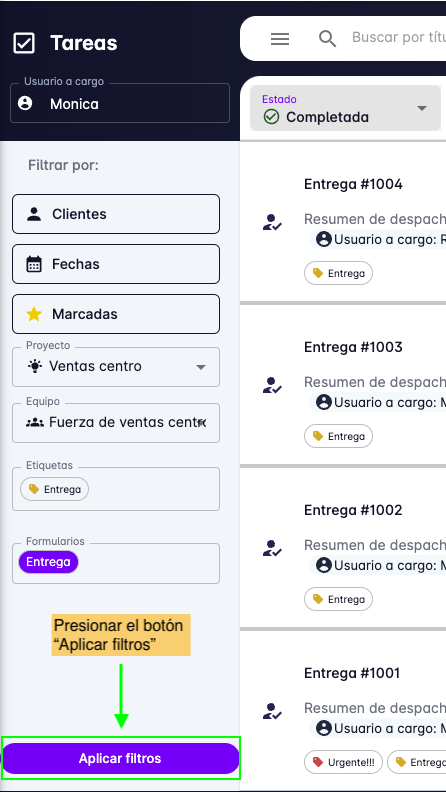
Filters are only applied when you press the "Apply filters" button.
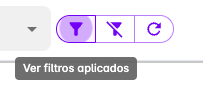
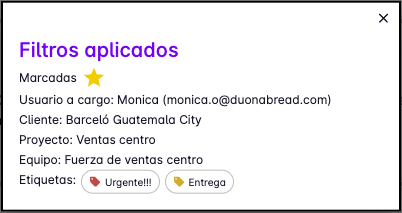
To see a list of currently active filters, press this button at the top center of the screen.
A message will appear showing the active filters.
Share Filter Link
If you want to share the filters you have applied, copy the URL from your browser's address bar.

Anyone with the link will see the same filters applied.
Clear Filters
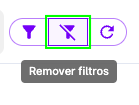
To remove the filters you have applied, press the button at the top center of the screen.
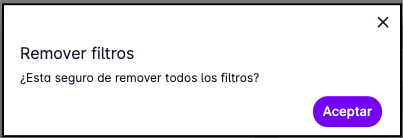
A confirmation message will appear before the filters are cleared.
Task Search
To search for tasks by text, use the search field at the top of the screen.

Type the text you want to search for and press Enter.
The search clears any active filters and searches across all tasks in the workspace.
Total Tasks
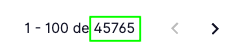
The top of the screen shows the total number of tasks in the workspace.
This number also reflects tasks found after applying filters.
Pagination
If there are more than 100 tasks, they will be displayed across multiple pages.
Navigation buttons appear in the upper right corner of the screen.
Download Tasks
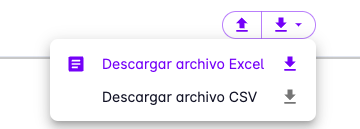
To download the tasks shown on the screen, press the download button in the upper right corner.
Downloading in Excel and CSV format is available.
To include form responses in the downloaded file, apply a form filter before downloading.
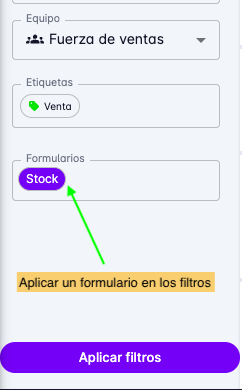

Without selecting a form in the filters, form responses will not appear in the downloaded file.