Create Task
To create a task, go to the tasks page and click the "Create task" button.
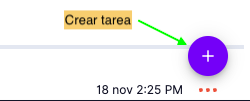
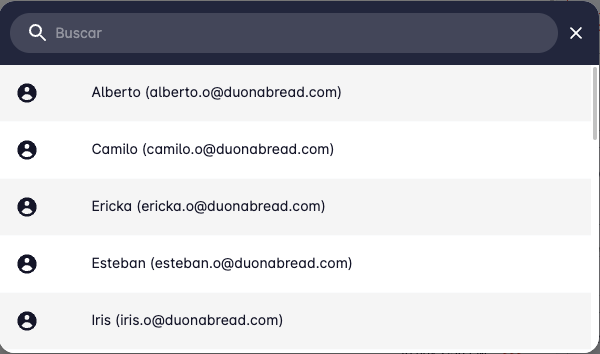
This will open a list of users so you can choose who to assign the task to.
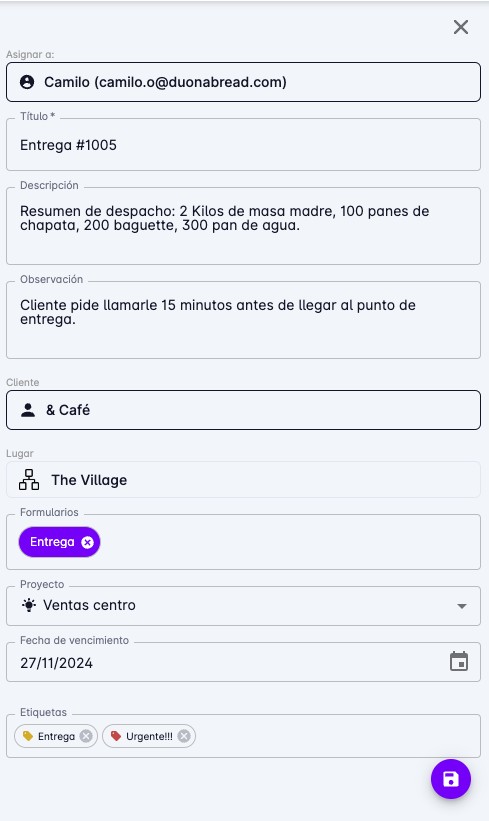
Then fill in the task information in the form on the right panel.
With User and Client Restriction
Depending on your workspace configuration, tasks may have user and client restrictions.
To check your workspace's configuration, see the task configuration page.
- User restriction — the task must be assigned to a user; the user field is required.
- Client restriction — the clients available for a task are limited to those the assigned user can serve, based on the teams linked to the user and the client.
Without User and Client Restriction
Depending on your workspace configuration, tasks can be left unassigned and linked to any client.
To check your workspace's configuration, see the task configuration page.
Task Details
The remaining task fields are:
- User — the user the task will be assigned to.
- Title — the name you want to use to identify the task.
- Description — use this field to add useful notes about the task.
- Observation — additional information about the task.
- Client — the client linked to the task.
- Place — refers to the client's location (if they have multiple branches); use it to indicate the address or place where the task will be carried out.
- Forms — forms that must be completed to carry out the task.
- Projects — projects this task is classified under.
- Due date — the deadline for completing the task.
- Tags — labels to help categorize the task.
The user and title fields are required; all other fields are optional.
If you do not need all the fields, or want to change the order they appear in, you can do so in the task configuration under "Field order in task creation".
If you want the task status to change automatically when form fields are filled in, enable the "Automatic status change" option.
When you have finished filling in the task fields, click the "Save" button.
You will see the task appear in the list and its detail displayed in the right panel.
After about a minute, the task will be available in the mobile app of the assigned user.
If it does not appear, the user can sync the app to refresh their task list.