Roles
Permissions are an important part of any user management system. Roles are a way to assign permissions to users. A user can have multiple roles, and a role can have multiple permissions.
Role List
From the Users page, you can access the role list by clicking the Roles button.

The name, number of users, and number of permissions for each role will be displayed.
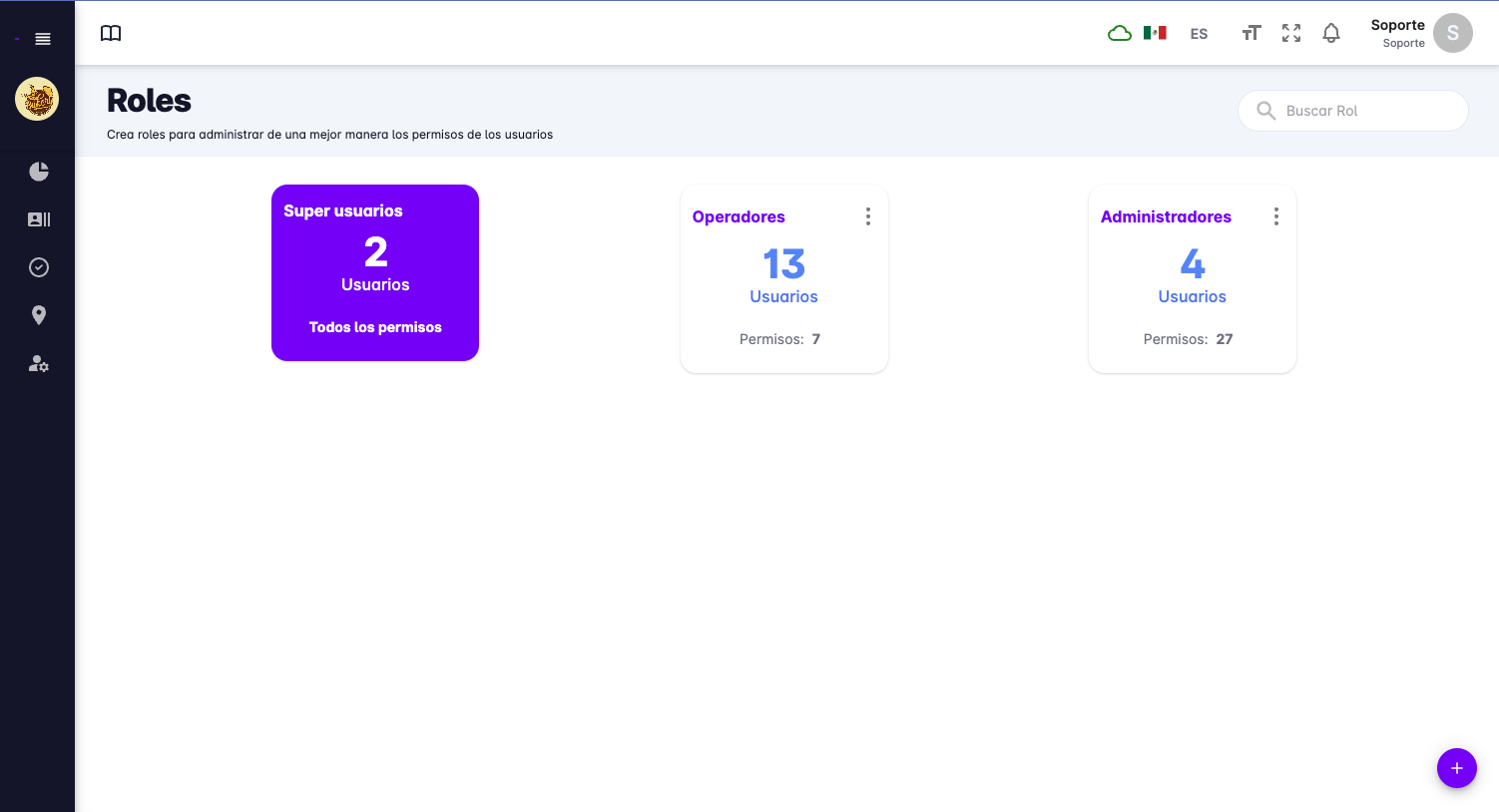
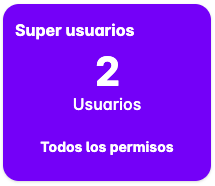
Among the permissions there is a special one called Superuser, which grants all system permissions and cannot be deleted.
By default, the Administrator and Operator roles are created with predefined permissions, but they can be modified.
The Administrator role has the necessary permissions to manage the system, while the Operator role has only the permissions needed to use the mobile app.
Create Role
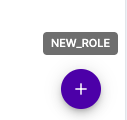
You can create additional roles as needed. To create a role, click the Create role button at the bottom right of the role list.
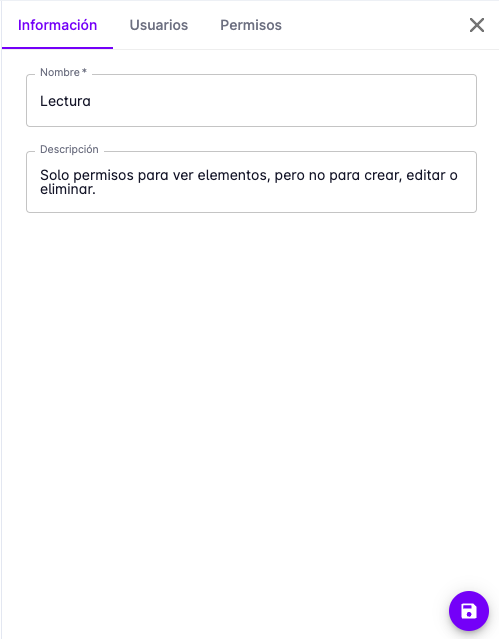
A panel will appear on the right side with a form to enter the role's name and description.
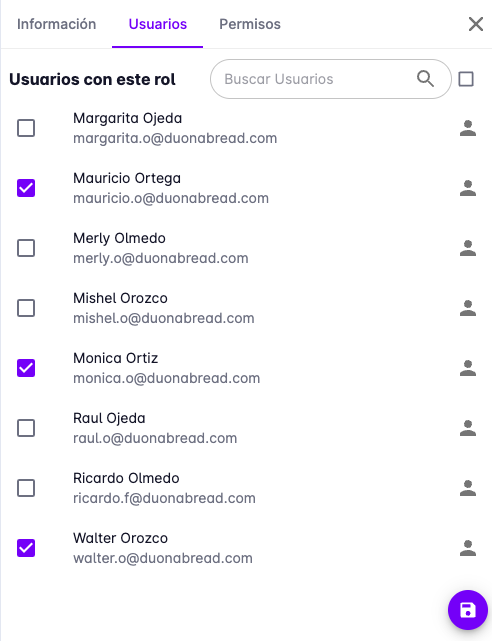
In the Users tab, specify the users who will have this role.
In the Permissions tab, specify the permissions the role will have.
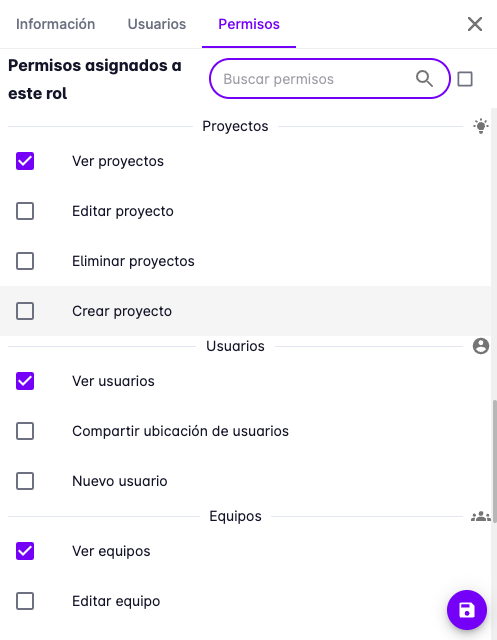
When you have finished entering the information, press the Save button.
Edit Role
To edit a role, click on the role you want to edit. A panel will appear with the role's information ready to be edited.
You can change the role's name, description, users, and permissions.
Remember to press the Save button when you have finished editing.
Delete Role
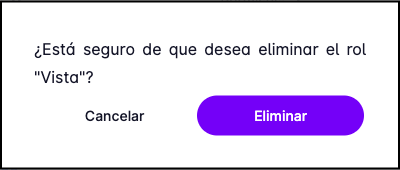
To delete a role, click on the role you want to delete. The role detail panel will appear, and at the bottom right of the panel, click the Delete button.
A confirmation message will appear to delete the role. Press the Delete button.
Options
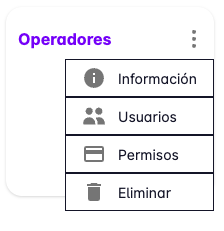
In the role list, clicking the three dots on a role will show the available options to access the operations described above.
Superusers
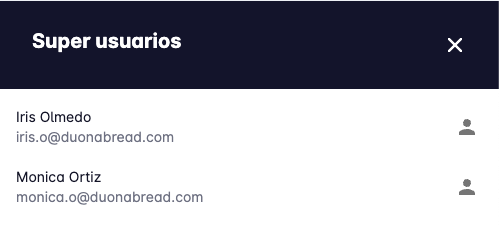
The superuser list is found by clicking the box that says "Super users". On the right side of the page, the superuser list will appear, showing the name and email of each superuser.
To make a user a superuser, go to the user list, select the user, and press the Edit button. In the edit form, a checkbox will appear to mark the user as a superuser.
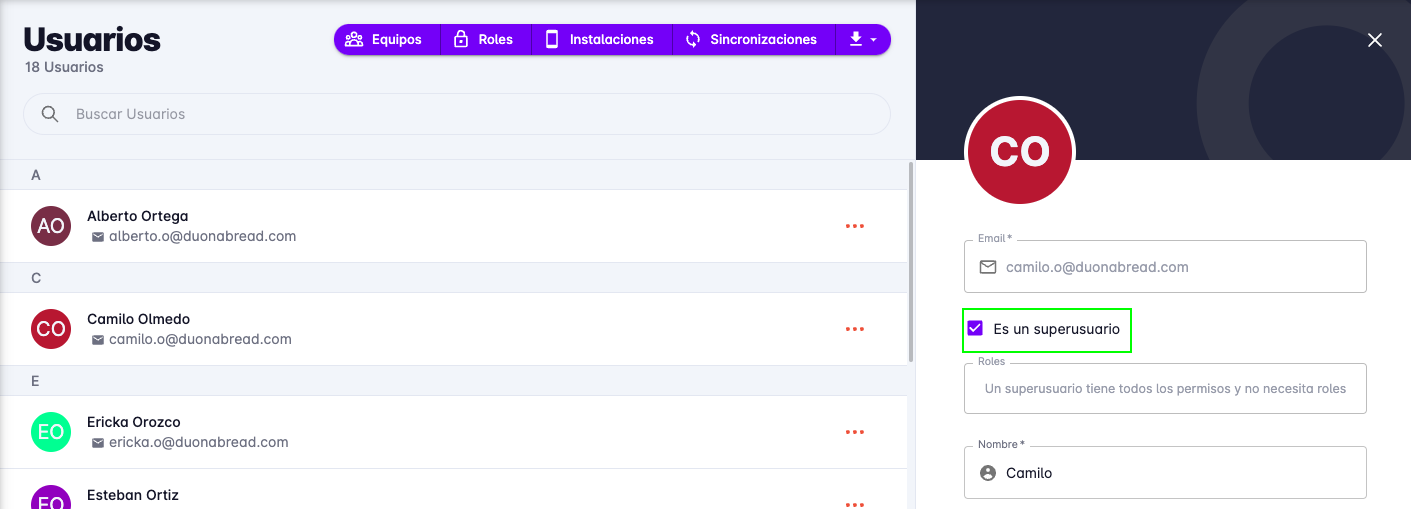
Press the Save button to finish.
With this, the selected user will have all system permissions.