User Location
To view the location of users, select the Users button.
Three options will appear:
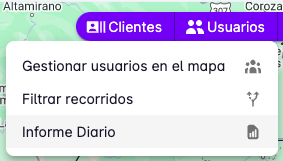
- Manage users on the map
- Filter tracks
- Daily report
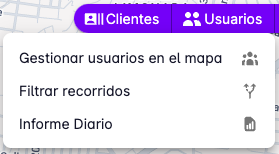
Manage Users on the Map
Select Manage users on the map to see the real-time location of users.
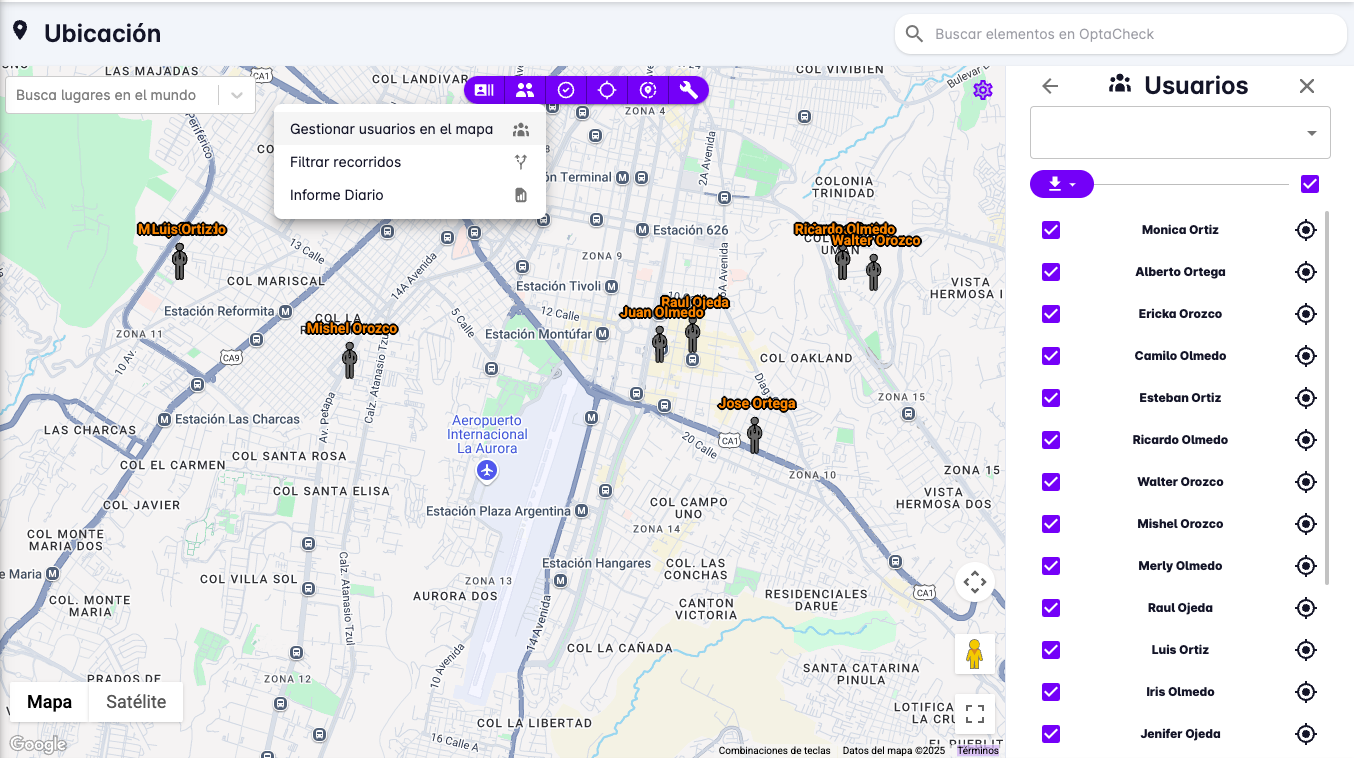
A list of the users shown on the map will appear on the right side.
Each user in that list has buttons to locate them on the map and to hide them from the map.
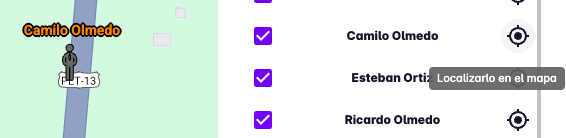
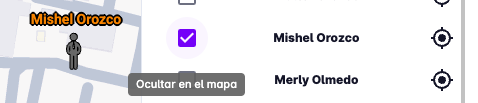
Each user will have a human-figure marker showing their real-time location.
Clicking a user will display more information about their location.
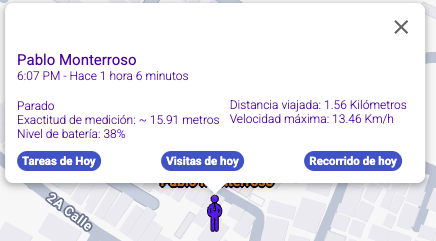
This information shows the user's name, their current speed, the date and time of the last update, and buttons to view their track, completed tasks, and visits.
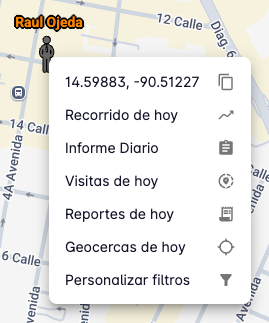
Right-clicking on a user's marker will show a context menu with options to copy coordinates, share location via a link, go to their daily report, today's visits, today's completed tasks, and today's geofences.
Filter Tracks
Select Filter tracks to show the controls for viewing user tracks.
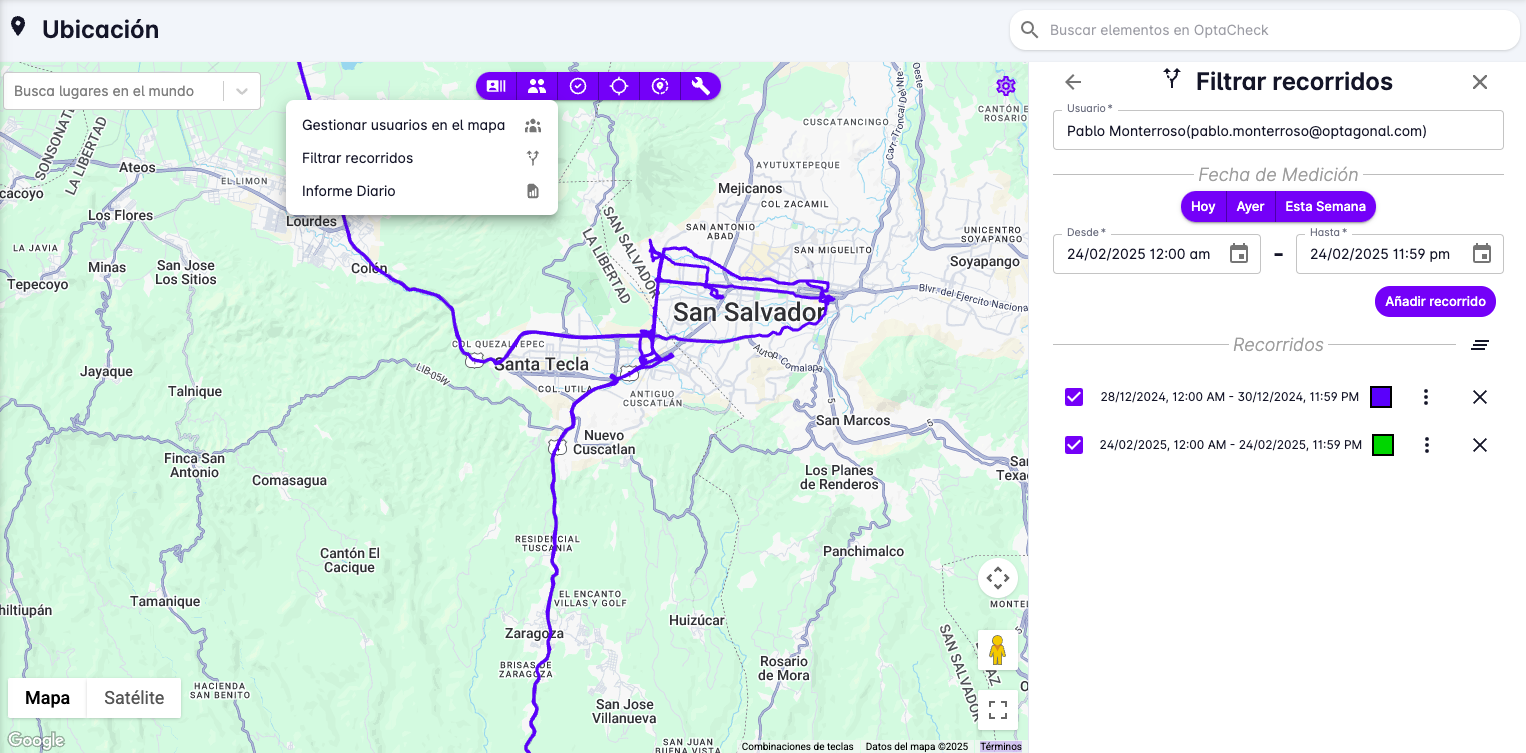
A form on the right side lets you filter user tracks by user, date, and time.
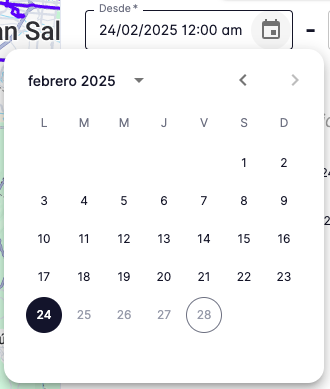
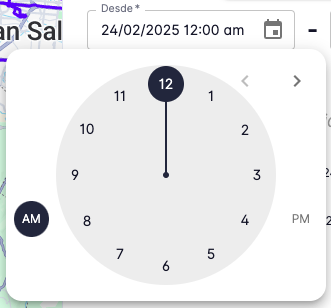
Use the Today, Yesterday, This week shortcut buttons to fill in the date and time automatically, or use the calendar and clock controls to set the date and time manually.

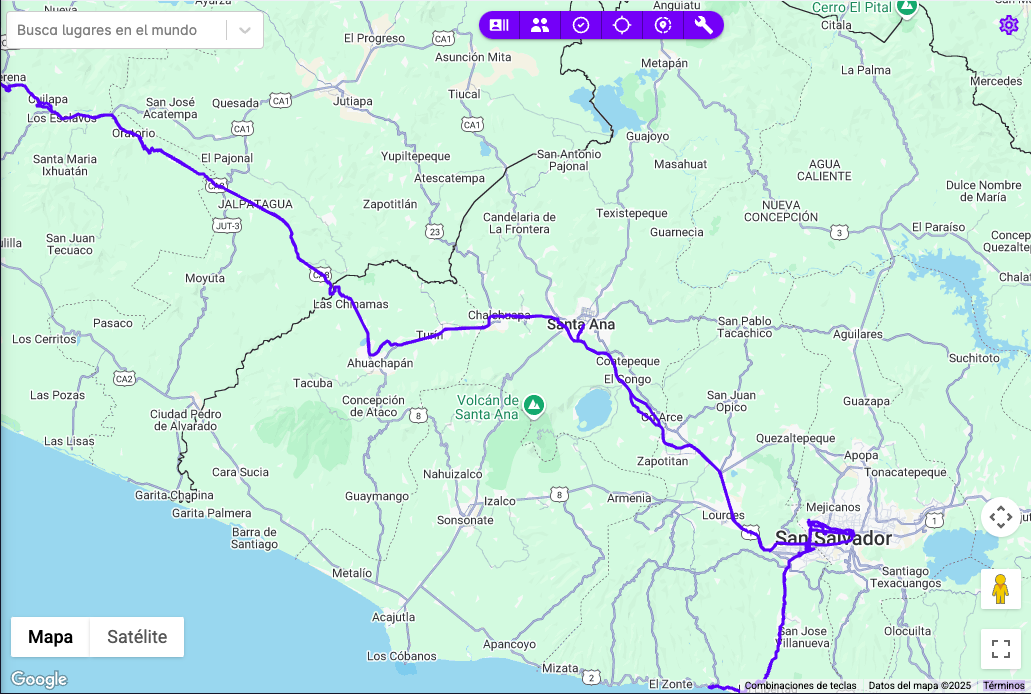
Pressing Add track will display the track on the map and add a filter entry at the bottom of the right panel.
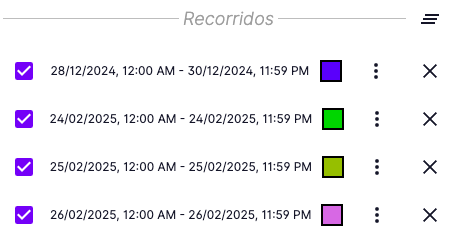
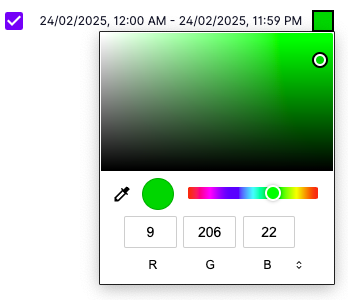
The track list shows the applied date range, a checkbox to hide it on the map, a color picker, download buttons, and a button to remove the filter. The color picker is particularly useful for distinguishing between different users' tracks — you can change it to any color you like.
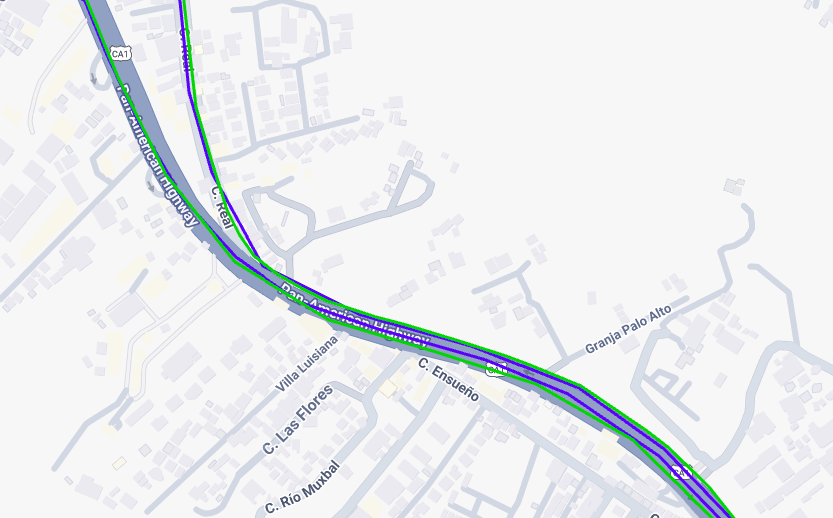
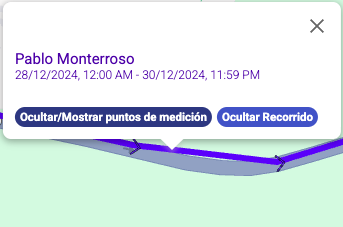
To see the measurement points used to draw the track, hover over the track line and click on it. A window will appear with information about the track and a button to view the measurement points.
After clicking the button to view measurement points, arrows will appear along the track line.
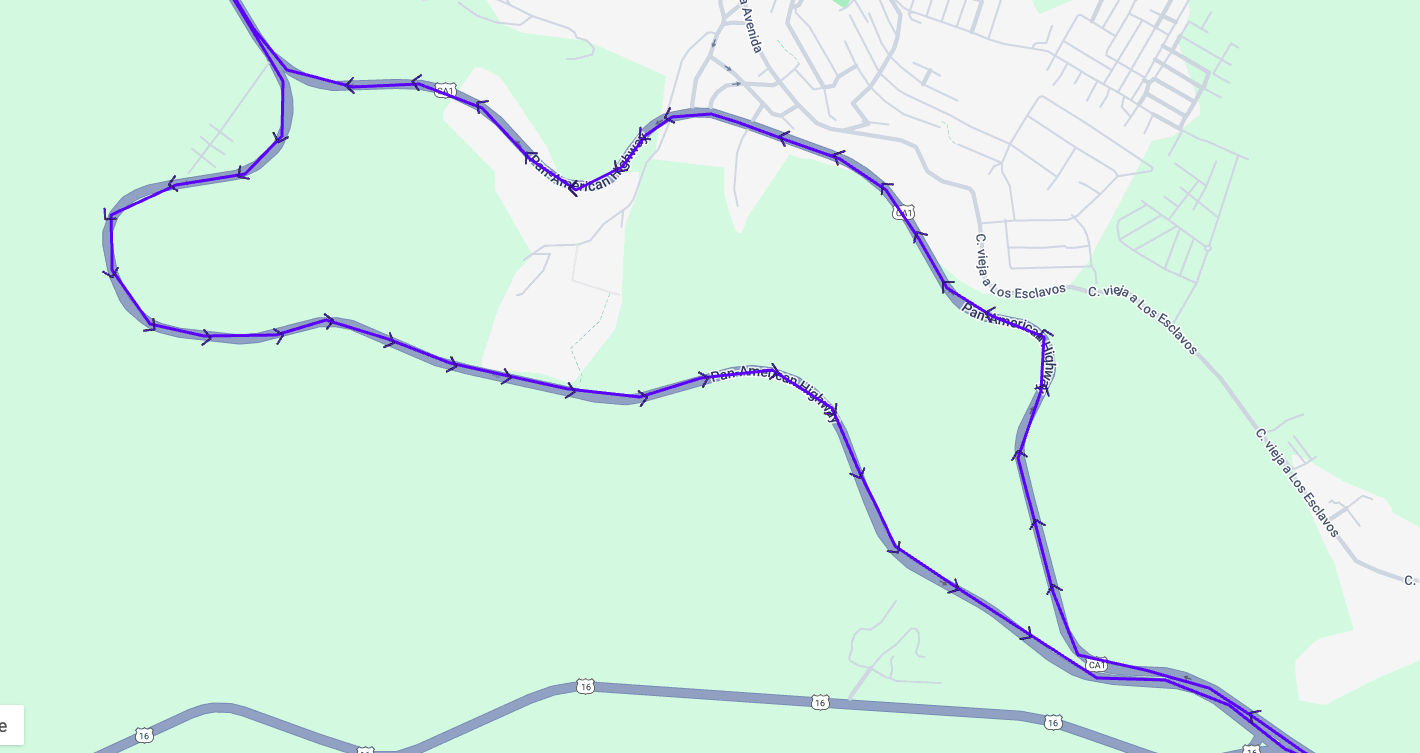
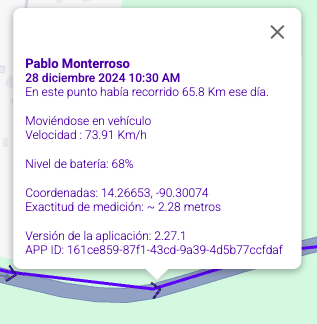
These arrows indicate the direction the user was moving. You can click on a measurement point to see the location details.
Daily Report
The daily report shows a summary of a user's movements on a specific day, including distance traveled, active time, average speed, and maximum speed.
To view the daily report, select the Daily report button.
A form on the right side lets you filter by user and date.
If no user is selected, the daily reports of all users will be shown.
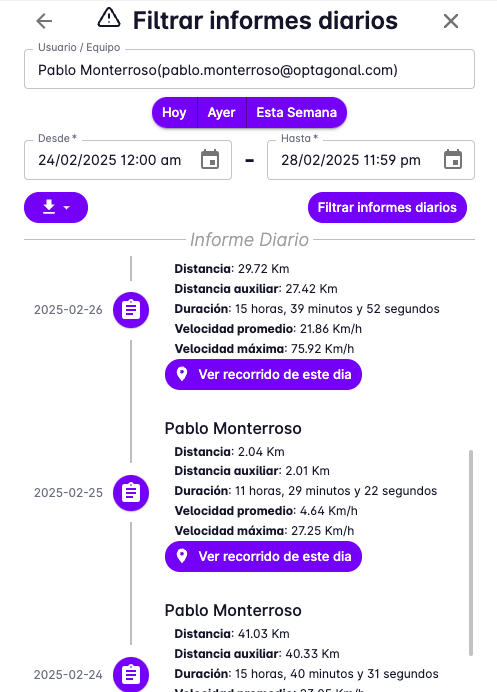
After selecting a user or date, press Filter daily reports. A timeline will appear at the bottom of the right panel. Each day with a daily report will show a point on the timeline with the report details, plus a button to view the track for that day.