Upload Tasks by File
You can create tasks in bulk by uploading a CSV file.
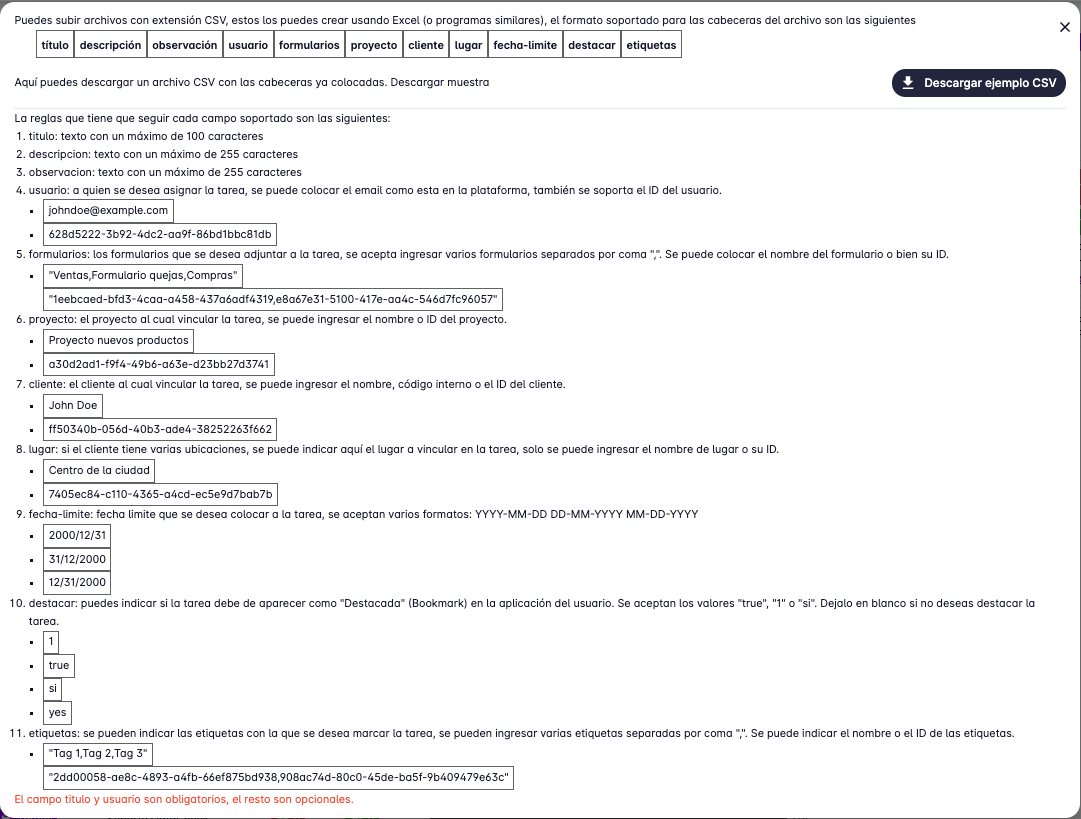
To learn the required CSV format, download a sample file by clicking the "Supported formats" button.

This will open a window with the information needed to create the CSV file.
Steps to Upload a File
-
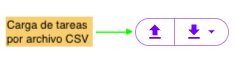
On the tasks screen, press the "Upload tasks" button in the upper right corner.
-
A page will appear showing the list of previous uploads.

-
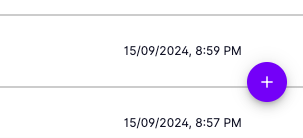
Press the "Upload tasks" button in the upper right corner.
-
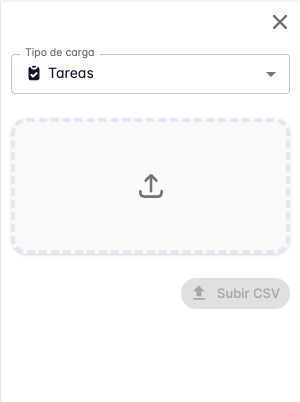
A right panel will open with a form where you can select the CSV file containing the tasks you want to upload.
-
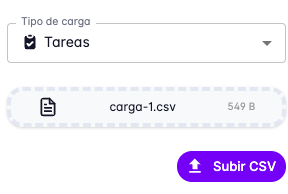
Select the file and press the "Upload CSV" button.
-
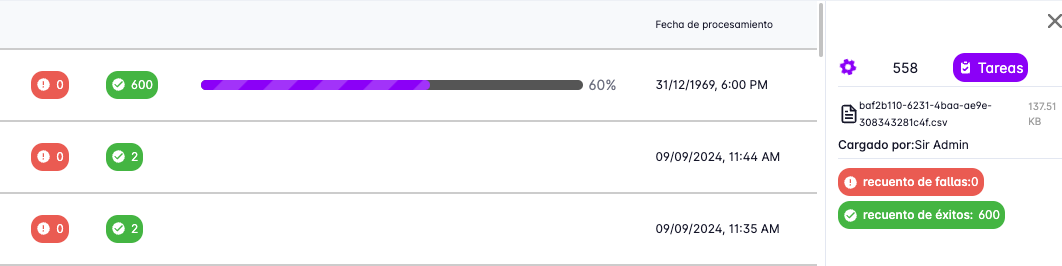
The upload list will show the progress of tasks created successfully and any that have errors.
-
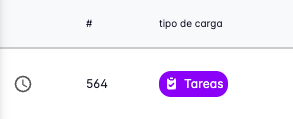
The upload is placed in a queue — while waiting, a clock icon is displayed.
-
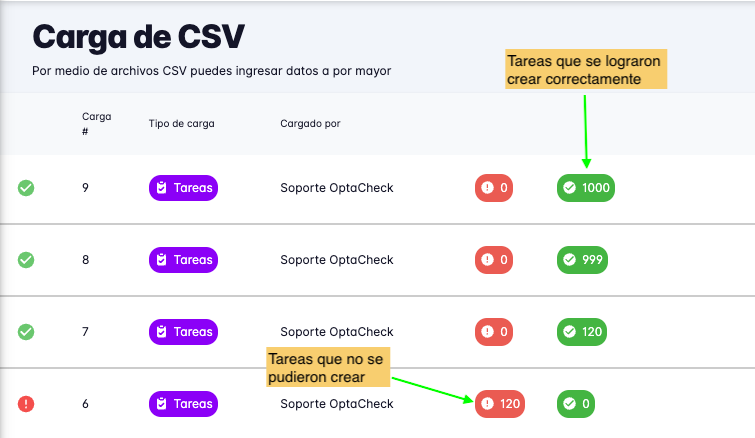
When the upload is complete, a summary will show how many tasks were created and how many have errors.
Upload Details
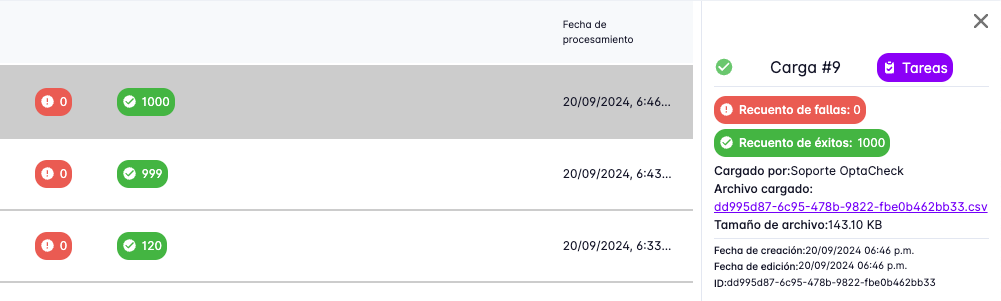
To view the details of tasks that were created successfully or have errors, click the upload entry to open a right panel with the details.
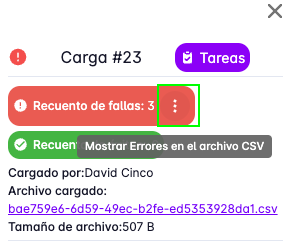
If the upload has errors, you can view the affected tasks by clicking the button next to the error count.
A window will open showing the problematic tasks in a table similar to the CSV format. Columns with issues are highlighted — hover over a cell to see a description of the error.
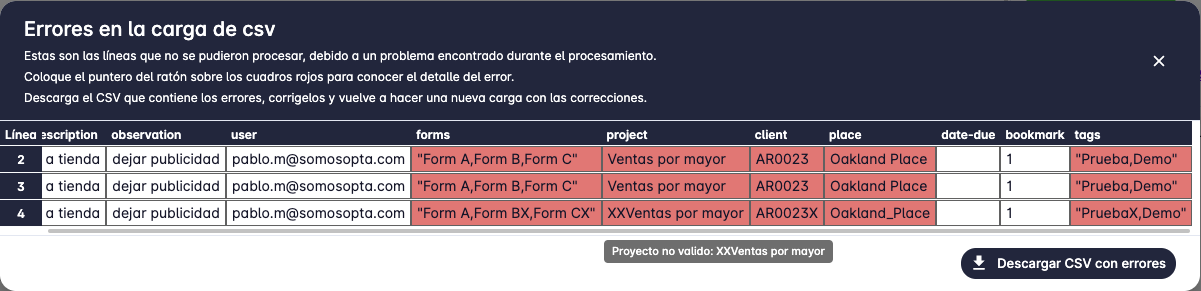
You can also download a CSV file containing only the tasks with errors, correct them, and re-upload.