Teams
Users can be grouped into teams, which helps facilitate client assignment, alert management, and applying filters. A user can belong to one or more teams.
Team List
From the Users page, you can access the team list by clicking the Teams button.

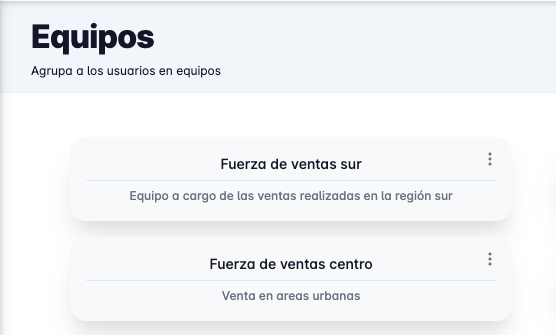
The team list will appear, showing the name and description of each team.
Create Team
To create a team, click the Create team button at the bottom right of the team list.
A form will appear to enter the team's name, description, and organizer.
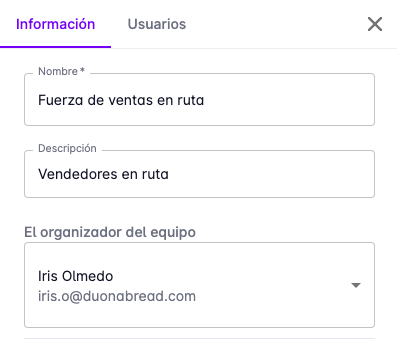
In the Users tab, specify the members who will belong to the team.
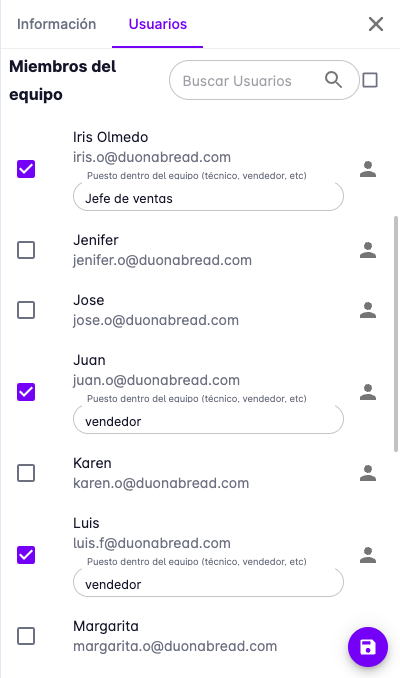
When you have finished entering the information, press the Save button.
Edit Team
To edit a team, click on the team you want to edit. A panel will appear with the team's information ready to be edited.
You can change the team's name, description, organizer, and members.
Remember to press the Save button when you have finished editing.
Remove Team
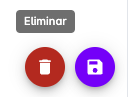
To remove a team, click on the team you want to remove. The team detail panel will appear, and at the bottom right of the panel, click the Delete button.
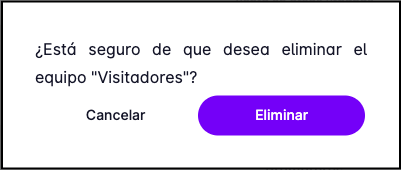
A confirmation message will appear to remove the team. Press the Delete button.
Options
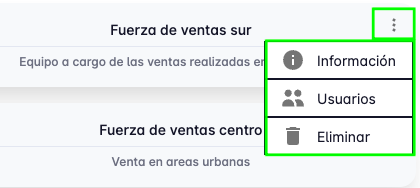
In the team list, clicking the three dots on a team will show the available options to access the operations described above.