Edit Task
To edit a task, click the edit button that appears on the right side of the panel where the task's details are shown.
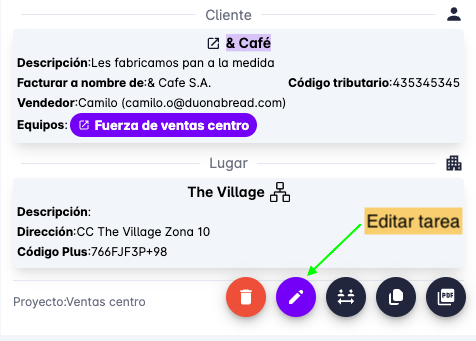
Edit Basic Information
The process for editing a task is very similar to creating one — the form is pre-filled with the existing task information, which you can then modify.
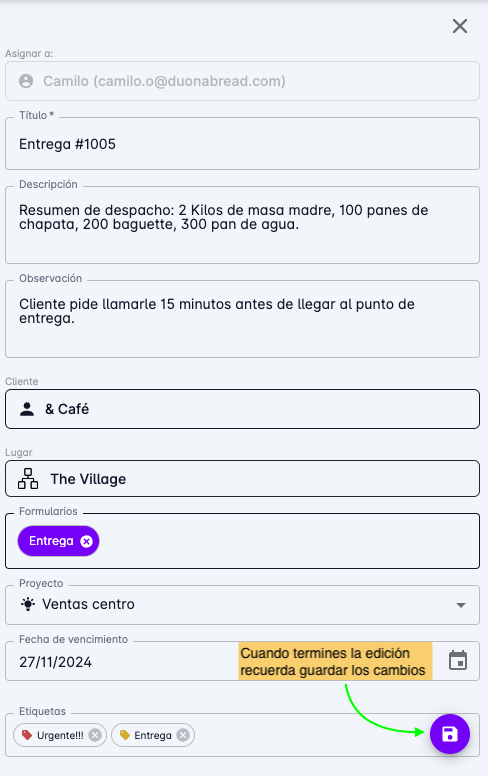
When you have finished editing, click the "Save" button.
To change the user the task is assigned to, use the process described in the next section.
Change Assigned User
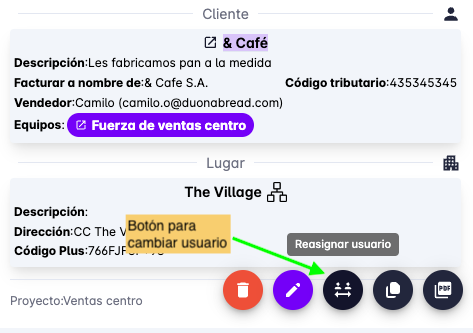
To change the user a task is assigned to, click the "Reassign user" button on the right side of the task detail panel.
A list of users will appear — click the desired user to reassign the task.
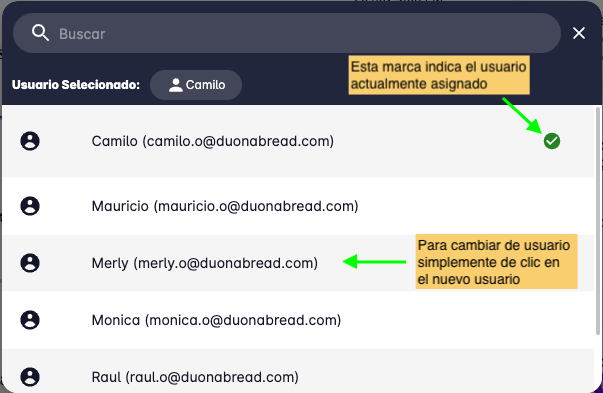
The task will be reassigned immediately.
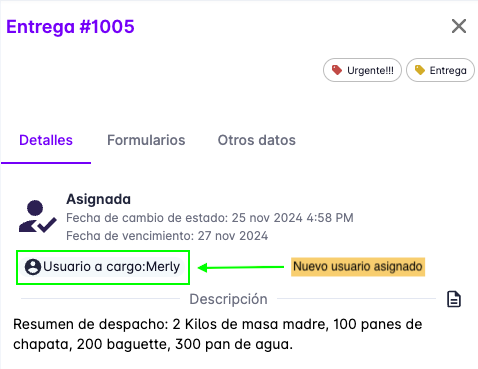
Note: this process creates a copy of the original task and assigns it to the new user; the original task is then deleted. The platform removes the original task due to the sync mechanism used by the mobile app. The copy is synced to the new user and the original disappears from the previous user's task list.